Key Highlights
- Discover how inZOI mods can transform your gameplay with new clothes, furniture, and features.
- Learn the simple process to download and install mods into the correct game folder.
- Understand the importance of using reputable sources for your mod download to ensure safety.
- Get a step-by-step guide on preparing your inZOI game for the modding process.
- Find solutions for common modding issues, from installation problems to compatibility conflicts.
- Explore how to manage your mods, including updating or uninstalling them from your mods folder.
Introduction
Welcome to the exciting world of inZOI, a game brimming with potential for personalization. If you’re looking to take your experience to the next level, you’ve come to the right place. This guide is all about mods—user-created content that can add everything from new hairstyles to entirely new gameplay mechanics. We will walk you through how to safely download and install inZOI mods, unlocking a universe of customization that makes the game truly your own.
Understanding inZOI Mods and Their Benefits
Before you jump into the modding scene, it’s helpful to understand what these modifications are and why they are so popular. Mods are essentially additions or changes made by fellow players that alter the original game.
The inZOI modding community is already buzzing with creativity, offering a wide array of content to enhance your game. From cosmetic tweaks to significant gameplay overhauls, these additions can breathe new life into your world. Let’s explore what inZOI mods are and how they can improve your experience.
What Are inZOI Mods?
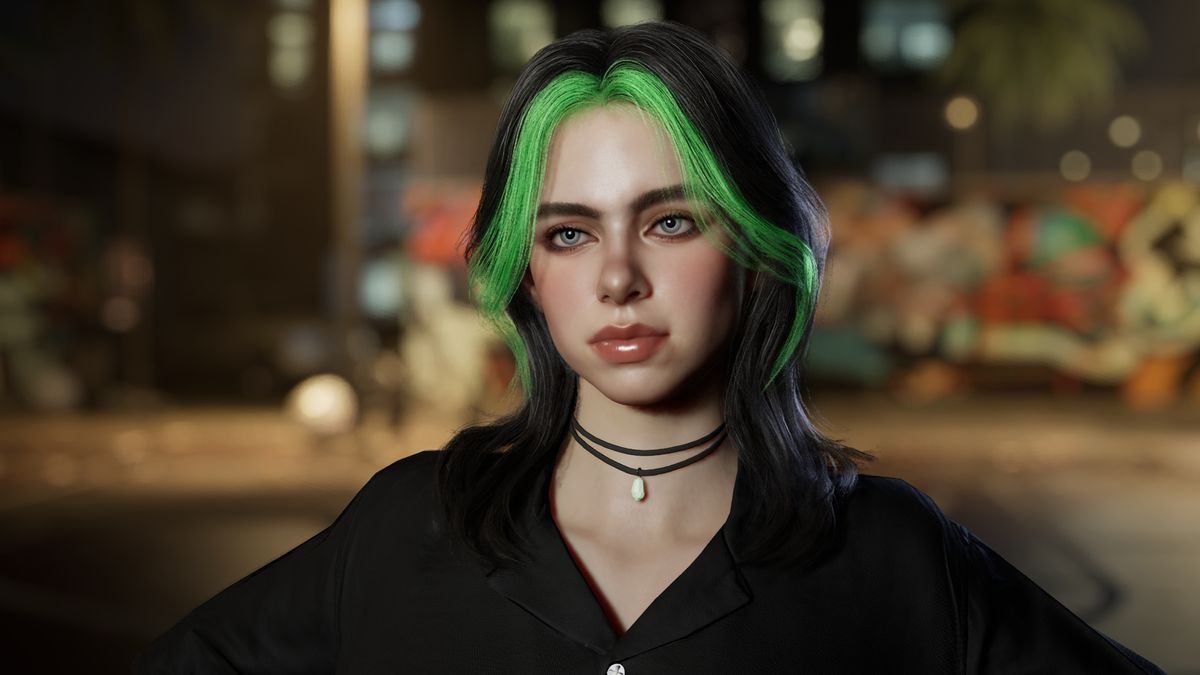
So, what exactly are we talking about when we mention inZOI mods? Think of them as custom packages of content created by the player community. These packages can contain a huge variety of items. You might find new, fashionable clothes and accessories for your characters, giving them a unique style that stands out.
Beyond clothing, mods can introduce different hairstyles, beards, and makeup options, allowing for deeper character customization. You can also find special furniture sets and decorative items to perfect your virtual home. Essentially, if you can imagine it, there’s a good chance someone is creating a mod for it.
These mods are not just limited to visual items. Some of the most impactful mods introduce gameplay changes, fix existing bugs, or add new features that the original developers may not have included. This means you can tailor the game’s mechanics to your personal preference, creating a more enjoyable and seamless experience with inZOI.
Enhancing Gameplay: Why Add Mods to inZOI?
You might be wondering, “Why should I consider adding mods to inZOI?” The primary reason is personalization. Mods give you the power to break free from the base game’s limitations and craft an experience that is uniquely yours. Whether you’re a storyteller looking for specific poses or a builder wanting more decor options, modding opens up endless possibilities.
Another significant benefit is the ability to improve and expand gameplay. The modding community is excellent at identifying and fixing long-standing bugs that may not have been addressed by official updates. Furthermore, you can find realism mods that create a more immersive world or controller mods, like the MCCC-style features discussed by players, that give you greater control over your game world and its inhabitants.
Ultimately, engaging with inZOI mods enhances the replayability and longevity of the game. With a constant stream of new content from a creative community, there is always something new to discover. From minor cosmetic tweaks to major gameplay overhauls, modding ensures your inZOI adventure remains fresh, exciting, and perfectly suited to your play style.
Step-by-Step Guide to Installing inZOI Mods
Ready to start customizing? The process to install inZOI mods is surprisingly straightforward. Even if you’ve never tried modding before, you can get started in just a few simple steps. It all begins with finding a trustworthy source for your mod download and knowing where to place the files.
This section will guide you through the entire process, from getting your game ready for new content to safely downloading and installing the mods you want. We’ll ensure you have all the information you need to begin your modding journey without a hitch.
Preparing Your Game for Mods
How can you make sure your inZOI game is ready for mods? Proper preparation is key to a smooth modding experience. Before you download your first mod, you need to ensure the game is set up to recognize and use custom content. The first step for many games is to create a dedicated “Mods” folder within the game’s main directory, though inZOI may streamline this process.
A crucial step is to enable mods within the game’s settings. InZOI integrates mods directly, so you will likely find an option in the game menu to activate them. As a general best practice for any moddable game, creating a backup of your save files is always a wise decision before you begin installing new content. This protects your progress in case a mod causes unexpected issues.
To get your game ready, follow these simple checks:
- Launch inZOI and navigate to the game’s options or settings menu.
- Look for a “Mods” or “Custom Content” section and ensure the option to enable them is turned on.
- Restart the game after enabling mods to ensure the changes take effect.
Downloading and Installing Mods Safely
A common question among new users is, “Is it safe to download mods for inZOI?” The answer is yes, as long as you use reputable sources. Websites like inzoi.xyz are dedicated databases that offer free and secure downloads. These platforms often curate their content and provide community support, making them a safe place to find new mods. Avoid downloading files from random, untrusted links.
Once you find a mod you like on a trusted site, the installation process is simple. You’ll download the file, which may come compressed in a .zip or .rar format. If so, you will need to extract the files using a program like WinRAR or 7-Zip. These extracted files, often ending in a specific format for the game, are then moved into the designated inZOI mods folder.
After placing the files in the correct folder and ensuring mods are enabled in your game settings, you can launch inZOI to enjoy your new content. The game will automatically detect and load the mods you’ve installed.
|
Step |
Action |
Description |
|---|---|---|
|
1 |
Choose Your Mod |
Browse a trusted database like |
|
2 |
Download & Extract |
Download the file. If it’s a compressed file (.zip, .rar), extract its contents. |
|
3 |
Move to Folder |
Place the extracted files into the correct inZOI “Mods” folder in your game’s directory. |
|
4 |
Enable and Play |
Launch inZOI, ensure mods are enabled in the settings, and enjoy your new content. |
Troubleshooting Common Issues with inZOI Mods
Even with a straightforward installation process, you might occasionally run into issues with your inZOI mods. This is a normal part of the modding experience. Problems can range from a mod not appearing in-game to conflicts that cause the game to behave unexpectedly.
Don’t worry if something goes wrong. Most common problems have simple solutions. In the following sections, we will cover how to fix installation errors and how to manage mod compatibility to keep your game running smoothly and stably.
Fixing Installation Problems
What should you do if your mods aren’t working after installation? If you’ve installed a mod but it doesn’t show up or work correctly in inZOI, there are several troubleshooting steps you can take. The first thing to check is whether the mod files are in the correct folder. An incorrectly placed file is one of the most common reasons for a mod failing to load.
Another potential conflict can come from cloud storage services. For example, if you have OneDrive running, it might interfere with how the game accesses the mods folder. Disabling OneDrive before you launch the game can often resolve this issue. Simply quit the application from your taskbar and restart inZOI to see if your mods appear.
If you are still having trouble, here are a few things to try:
- Verify Installation: Double-check that you extracted the files correctly and placed them directly into the mods folder, not within a subfolder.
- Uninstall All Mods: Use the in-game feature to “Uninstall All Mods” and then try reinstalling one mod at a time to identify the source of the problem.
- Contact the Author: If a specific mod seems to be the issue, reaching out to its creator directly is a great way to get help, as mentioned on the CurseForge support pages.
Ensuring Mod Compatibility and Stability
How do I make sure my mods are compatible and won’t cause the game to crash? Ensuring stability is crucial for a fun modding experience. The key to preventing crashes is to pay close attention to mod compatibility. Not all mods are designed to work together, and some may conflict if they alter the same game files. Always read the mod description before you download, as creators often list known incompatibilities.
Keeping your mods and your game updated is also vital. When inZOI receives an official update, some mods may break and need to be updated by their creators to function correctly. Regularly check the sites where you downloaded your mods for new versions. Using outdated mods is a common cause of game instability and crashes.
If you run into persistent issues, the inZOI modding community is your best resource. Forums and Discord servers are full of active players who can offer support and help you troubleshoot compatibility problems. As one user on the Steam Community forums noted, there are “modders out there who can bring small but important mods to sort out those issues as well,” highlighting the community’s role in maintaining a stable game. Source: Steam Community
Conclusion
In conclusion, installing inZOI mods can significantly enhance your gaming experience by providing unique features and gameplay options that keep the excitement alive. By understanding what mods are and following the step-by-step guide to safely install them, you can easily transform your inZOI journey. Remember to troubleshoot any common issues you might encounter and ensure compatibility for a seamless experience. So, why not dive into the world of inZOI mods today? Start exploring and enjoy a richer, more customized adventure! If you have any questions or need further assistance, feel free to reach out. Happy gaming!
Frequently Asked Questions
Is it safe to use mods in inZOI?
Yes, using mods in inZOI is generally safe, provided you stick to reputable sources for your download. Use dedicated mod databases that verify their content. Always place the files in the correct mods folder and avoid downloading from suspicious links to ensure the safety of your game and computer.
Can I install multiple mods at once without issues?
You can install multiple inZOI mods, but compatibility can sometimes be an issue. If two mods alter the same game aspect, they may conflict. It’s best to add mods one by one to make troubleshooting easier if problems arise. Always check mod descriptions for known compatibility issues.
How do I remove or update mods in inZOI?
To uninstall inZOI mods, you can often use an in-game option to remove them or simply delete the files from your mods folder. To update a mod, download the new version from the creator’s page and replace the old files in your folder with the new ones.